

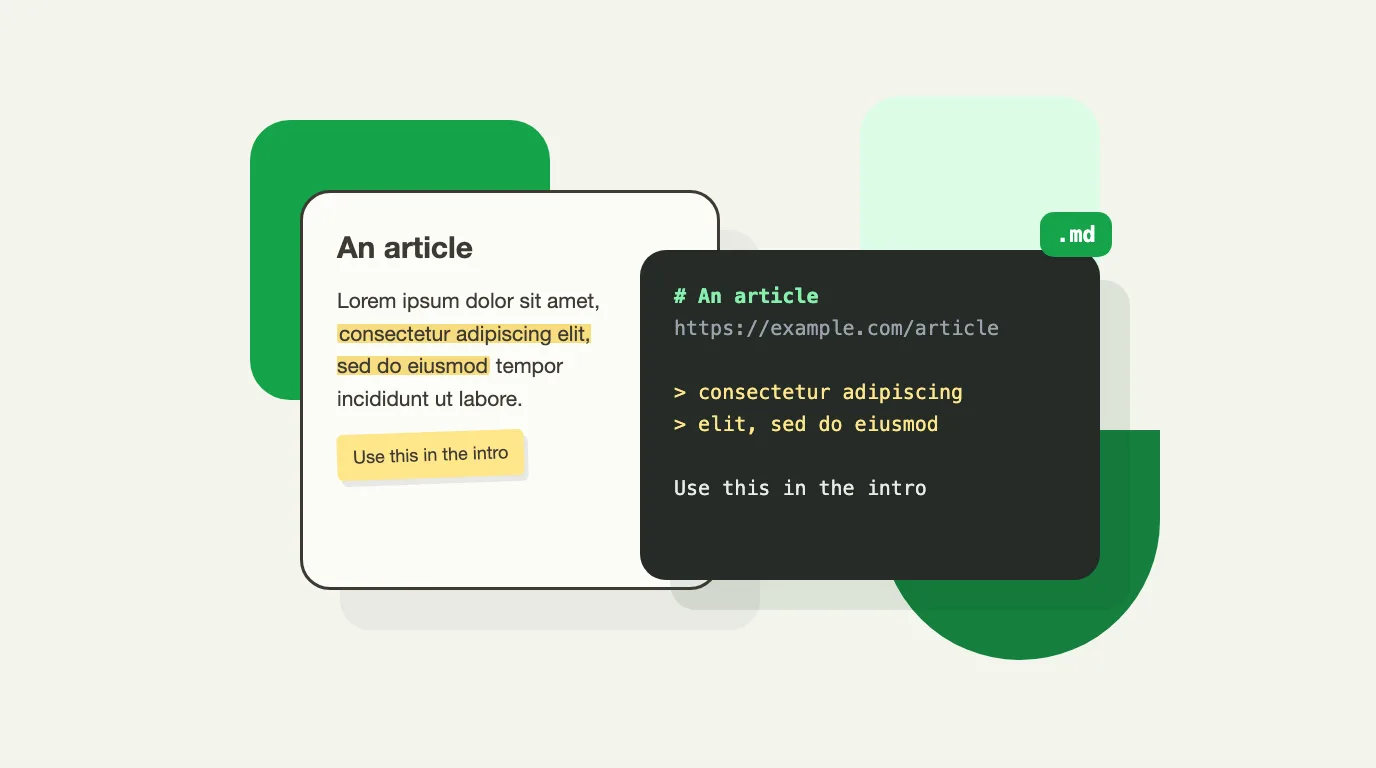
You read an article properly for once. You highlighted the four passages that matter and left a note next to the one you want to reuse. Then you open Obsidian, or Notion, and start again: copy the first passage, paste it, add the quote marks, go back for the URL, copy the second passage. The reading took ten minutes. Moving it into your notes takes five more, and you lose your train of thought on the way.
Markdown is the format nearly every notes app reads. If your highlights come out of the page as Markdown, that second step becomes a single paste.
Why Copy-Paste Is the Wrong Tool for This
- Formatting comes along: links, bold text and stray styles from the site end up in your note, or nothing does and every quote looks like your own words
- The source gets lost: unless you paste the URL every time, two weeks later you cannot tell where a quote came from
- Your own comments are separated from the passage they were about
- It is one trip per passage, and the trips are what break your focus
What a Good Highlights Export Looks Like
A useful export reads like a summary of the article, not like a pile of clippings. Four things make the difference:
- <strong>The source on top</strong>: the page title as a heading and its address, without the tracking parameters (utm_source and friends) that make links ugly
- <strong>Quotes that look like quotes</strong>: each highlight as a Markdown blockquote (a line starting with >), so it never mixes with your own writing
- <strong>Your notes as plain text</strong>: what you wrote is yours, so it stays a normal paragraph
- <strong>Page order</strong>: top to bottom, so a note sits right after the passage it comments on, whatever order you made them in
Step by Step: From Highlights to Markdown
This is how it works with Highlite, a free browser extension for Chrome, Firefox, Edge and Brave. Highlighting and notes are free; the Markdown export is part of Premium.
- Highlight the passages you want to keep: turn on the highlighter (H) and drag across the text
- Add your comments with a sticky note (N) or a text box (T), next to the passage they are about
- Open the Export panel with Ctrl+Shift+E (Cmd+Shift+E on Mac)
- In the Annotations section, click <strong>Copy (Markdown)</strong> to put it on your clipboard, or <strong>Download (Markdown)</strong> to save a .md file
- Paste it into your note, or drop the file into your Obsidian vault
The exact clicks are in the guide on exporting highlights to Markdown with Highlite.
Pasting Into Obsidian, Notion and Other Notes Apps
Obsidian
Obsidian stores notes as .md files, so the export is already a note. Paste it into an existing note, or download the file and move it into your vault. The heading becomes the note title and the page address stays a clickable link back to the source.
Notion
Paste the copied text into a Notion page: Notion converts Markdown as you paste, so the heading becomes a heading and each highlight becomes a quote block. You can also import the downloaded .md file as a new page.
Logseq, Bear, GitHub and plain text
Anything that reads Markdown takes the export as-is: Logseq, Bear, a GitHub issue or pull request, a README, or a plain text file that stays readable even without a Markdown viewer.
When You Need a Highlights Library Instead
An export from the page is the right shape when you want one article in one note, now, without an account or a sync service in between. It is not a reading library. Highlite exports one page at a time, keeps nothing on a server and does not collect your highlights from every site into one place.
If what you want is every highlight you ever made, synced into Obsidian or Notion automatically, a dedicated service such as Readwise, Glasp or Web Highlights is built for that, in exchange for storing your reading on its servers. Many people use both: a library for the books and articles they collect, and a page tool for the one they are working on today.
Keep the Reading, Skip the Retyping
Highlighting is the part of reading that takes thought. Moving the highlights into your notes should not. Mark the page, write your comments where they belong, and take the whole thing out as one clean block of Markdown. If you are new to web highlighting, start with how to highlight and save text on any website.
Frequently asked questions
How do I export highlights from a web page to Markdown?
Highlight the page with a web highlighter extension that exports Markdown. In Highlite, open the Export panel (Ctrl+Shift+E) and click Copy (Markdown) or Download (Markdown): you get the page title, its address, your highlights as quotes and your notes as paragraphs, in page order.
Can I export web highlights to Obsidian?
Yes. Obsidian notes are Markdown files, so you can paste the copied export into a note or put the downloaded .md file straight into your vault. No plugin is needed.
Are drawings and arrows included in the export?
No. Markdown is text, so the export carries highlights, sticky notes and text boxes. Drawings, arrows and shapes are left out; capture a screenshot to keep those.
Is the Markdown export free?
Highlighting and notes are free. Copying or downloading them as Markdown is part of Highlite Premium.
Try it on this article: highlight a sentence you would keep, add a sticky note next to it, then press Ctrl+Shift+E and copy it as Markdown.