

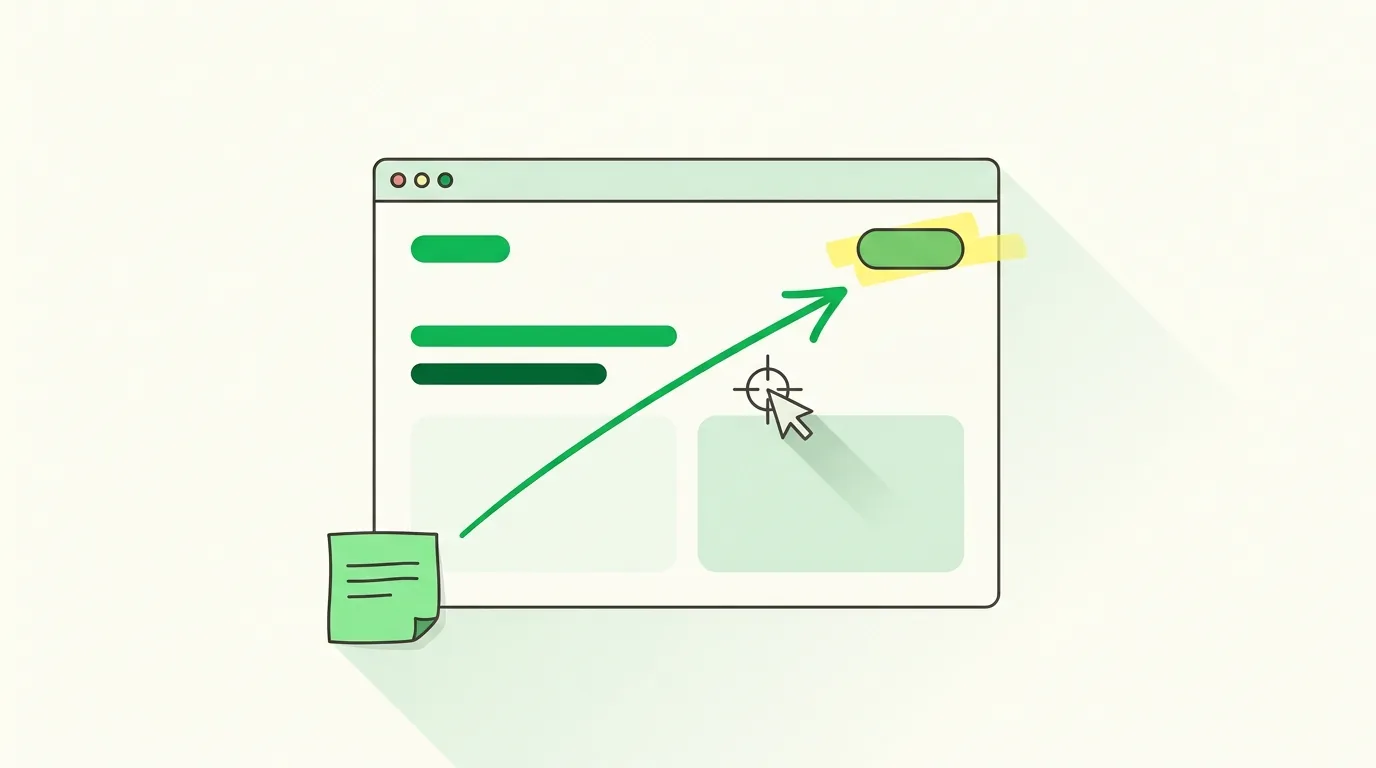
To draw an arrow on a website, use a browser extension that adds a drawing layer over the page: pick the arrow tool, drag from where you are writing to what you are pointing at, and capture the page. The arrow lands on the live element, so the person reading it never has to work out which button you meant.
Everything on a web page is "the one on the right"
Try describing a position on a modern page without an arrow. "Top right" — of the page, the section, or the card? "Below the banner" — which banner, on which breakpoint? "The second icon" — counting from where? Pages are dense grids of near-identical elements, and prose was never a good coordinate system.
What the missing arrow costs
- One clarifying question per ambiguous location, each one a half-day of latency in async work.
- Fixes applied to the wrong element, which then need a second review round.
- Long captions that take more effort to write than the fix takes to make.
- Feedback that reads fine to you and is unusable to the person who did not see your screen.
The workarounds and their limits
Most people end up in an image editor: screenshot the page, open it in Preview or Paint, draw a red line, save, upload. It works, but the arrow is drawn on a picture rather than on the page, so if the page moves — a lazy-loaded image, a sticky header — the arrow no longer means anything. Screen recordings avoid the editor but replace a glanceable arrow with a video someone has to scrub. And DevTools element highlighting is precise, but it lives on your machine and cannot be sent.
What a good arrow does
A useful arrow has two jobs. It disambiguates: it names one element out of many, with no words. And it connects: it ties a comment written in the white space to the element it is about, which is what lets you keep your note legible instead of cramming it into a 40-pixel gap. An arrow that only decorates — floating near a region, pointing at nothing in particular — is worse than none, because it implies a precision it does not have.
Aim at the element, start from the text. An arrow from your note to the broken button reads in one direction; an arrow drawn the other way makes people hunt for the explanation.
How to draw arrows on a live page
With Highlite, a free extension, it is one key and one drag:
- Open the page and activate the toolbar.
- Press A (or 5) to select the arrow tool.
- Drag from the empty space where your comment sits to the element you are pointing at.
- Press N to pin a note at the tail of the arrow, so the remark and the target are visibly connected.
- Press ⌘Z if the aim is off, or Esc to leave the tool. Then ⌘⇧E to capture and share.
Arrows sit alongside rectangles (R) and ellipses (O) for framing a whole region, and a laser pointer (L) for pointing live during a call without leaving a mark. Everything is drawn on a layer above the page — the site itself is never modified — and the annotations come back when you reopen the same URL.
A UX review of a signup form: one arrow from a note reading "this label is cut off at 320px" to the offending field, an ellipse around the whole error message block with "wrong color, and it appears before the user types", and an arrow linking the submit button to a note about its disabled state. Three arrows replaced a paragraph nobody would have parsed correctly.
Three habits that make arrows readable
- One arrow per idea. Two arrows converging on the same element usually mean the note should be split.
- Keep them short. A long arrow crossing half the page is harder to follow than moving the note closer.
- Do not rely on color alone to encode meaning — pair a color with a note, so the capture still reads for a color-blind teammate.
For freehand marks and the rest of the drawing toolkit, see how to draw and highlight on any web page. For pairing arrows with written feedback, see how to add comments to a web page.
Frequently asked questions
Can I draw arrows on any website?
Yes. The arrow is drawn in a layer rendered above the page, so it works on any site you can open — public pages, internal tools, or a staging build — without editing the site itself.
How do I draw an arrow on a screenshot?
Draw it on the live page before you capture, rather than editing the image afterwards. The arrow is then aimed at the real element and is included in the capture, which saves the whole round trip through an image editor.
Can I undo an arrow I placed badly?
Yes — ⌘Z undoes the last annotation and ⌘⇧Z redoes it, the same as in any editor. Esc leaves the arrow tool without drawing anything.
What is the difference between an arrow and a rectangle?
An arrow names one thing and links it to your comment. A rectangle or ellipse frames an area, which is better when the feedback is about a whole block rather than a single element. Use the arrow when precision matters, the shape when scope does.
Give it a try here: press A and draw an arrow at this sentence. It takes about five seconds, no account needed.